
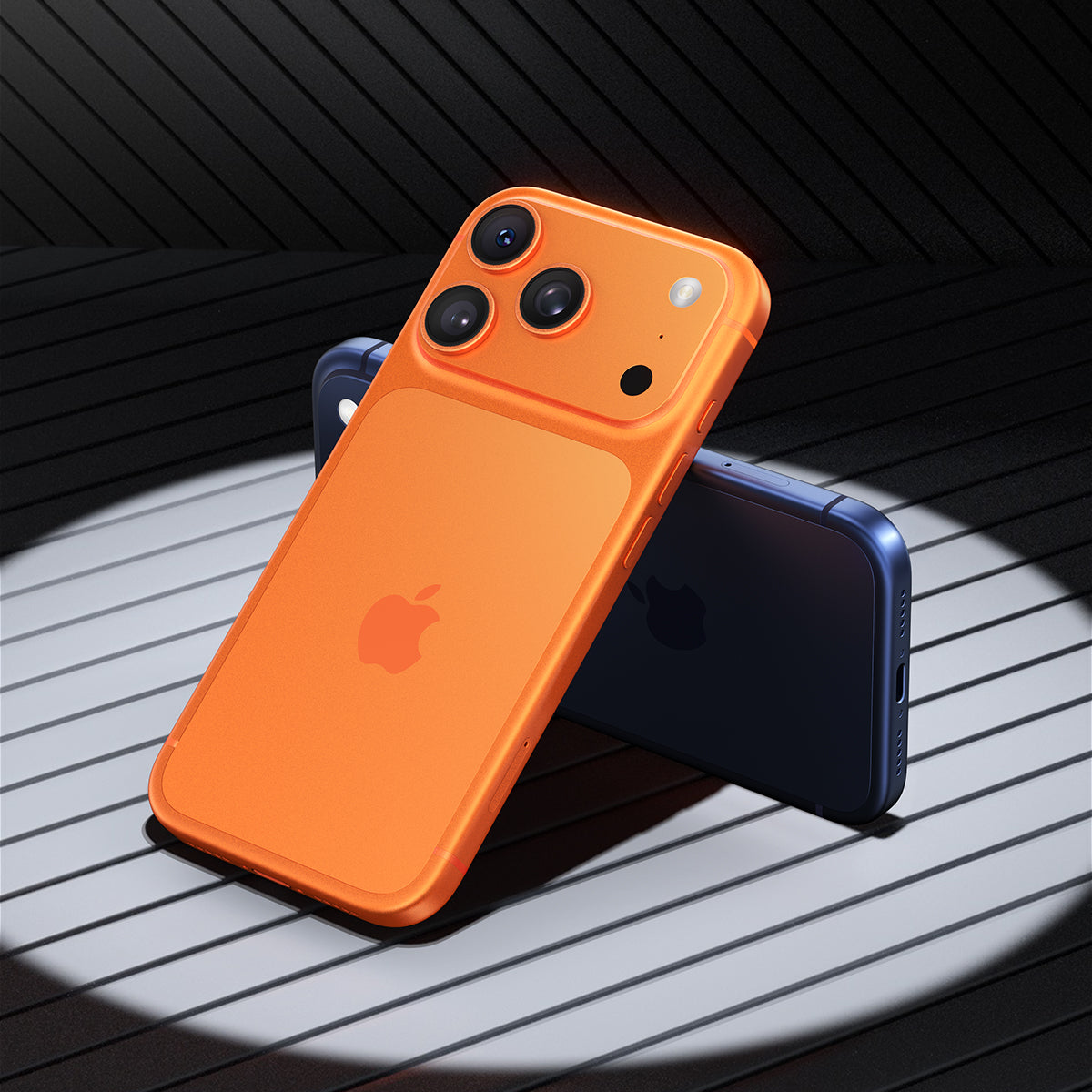
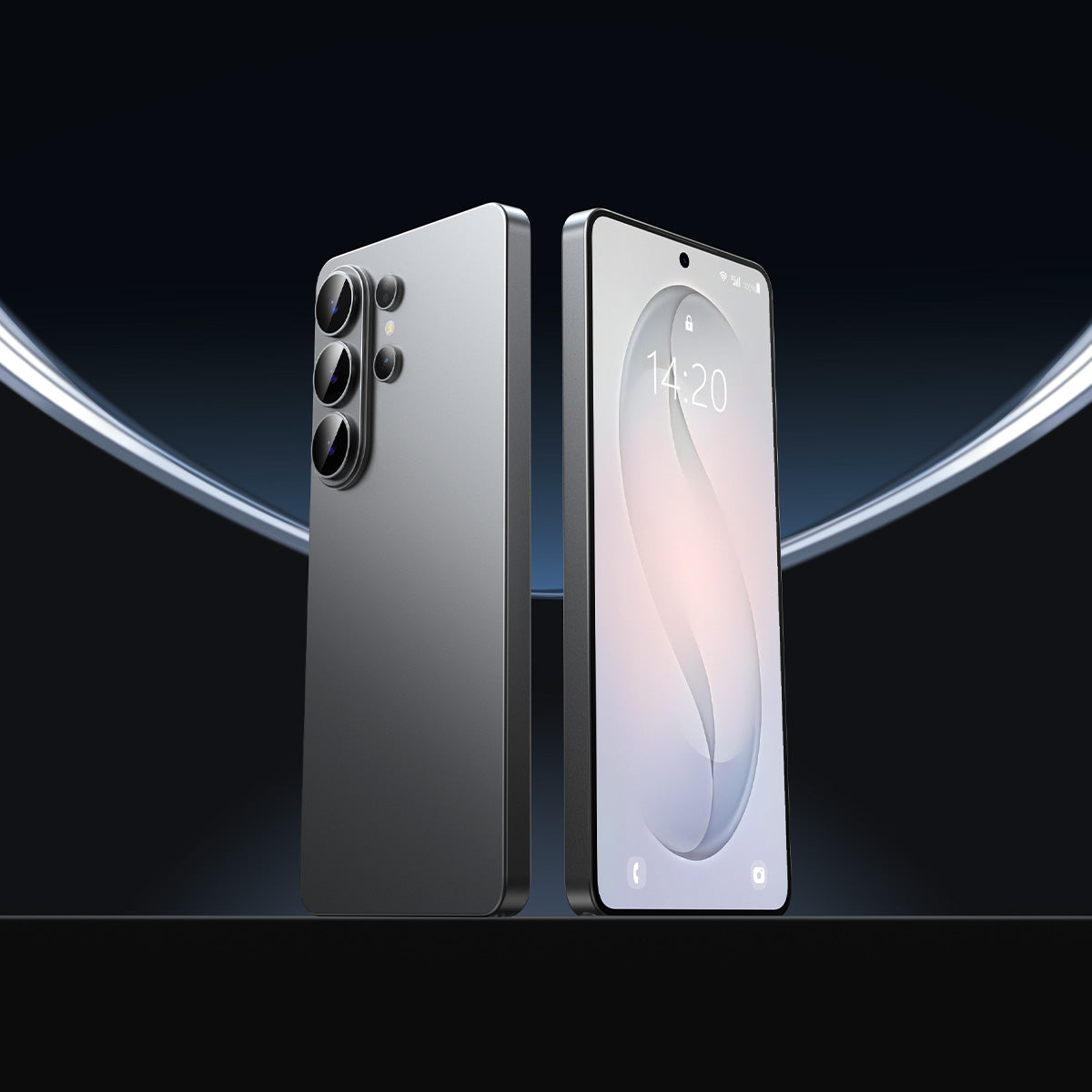

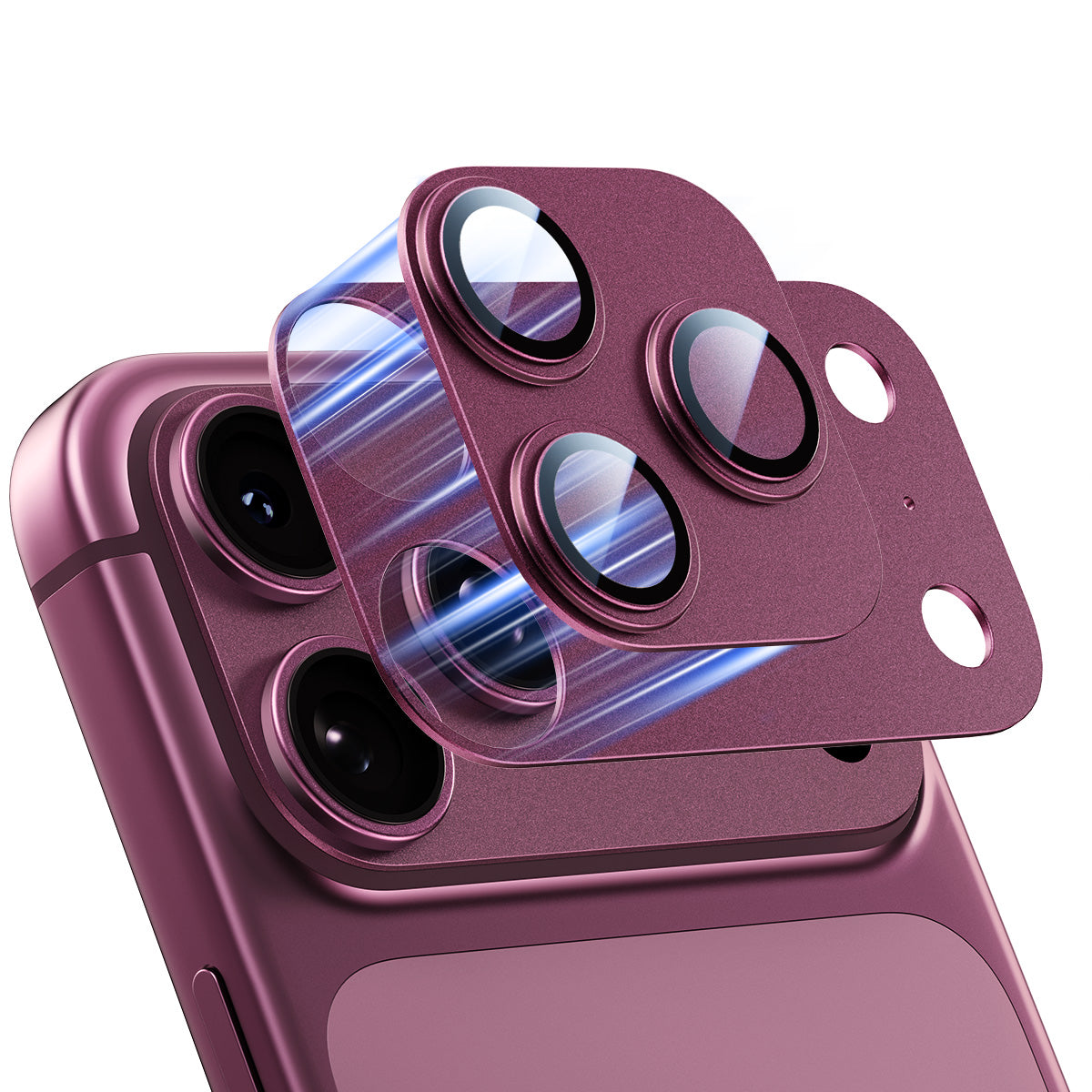
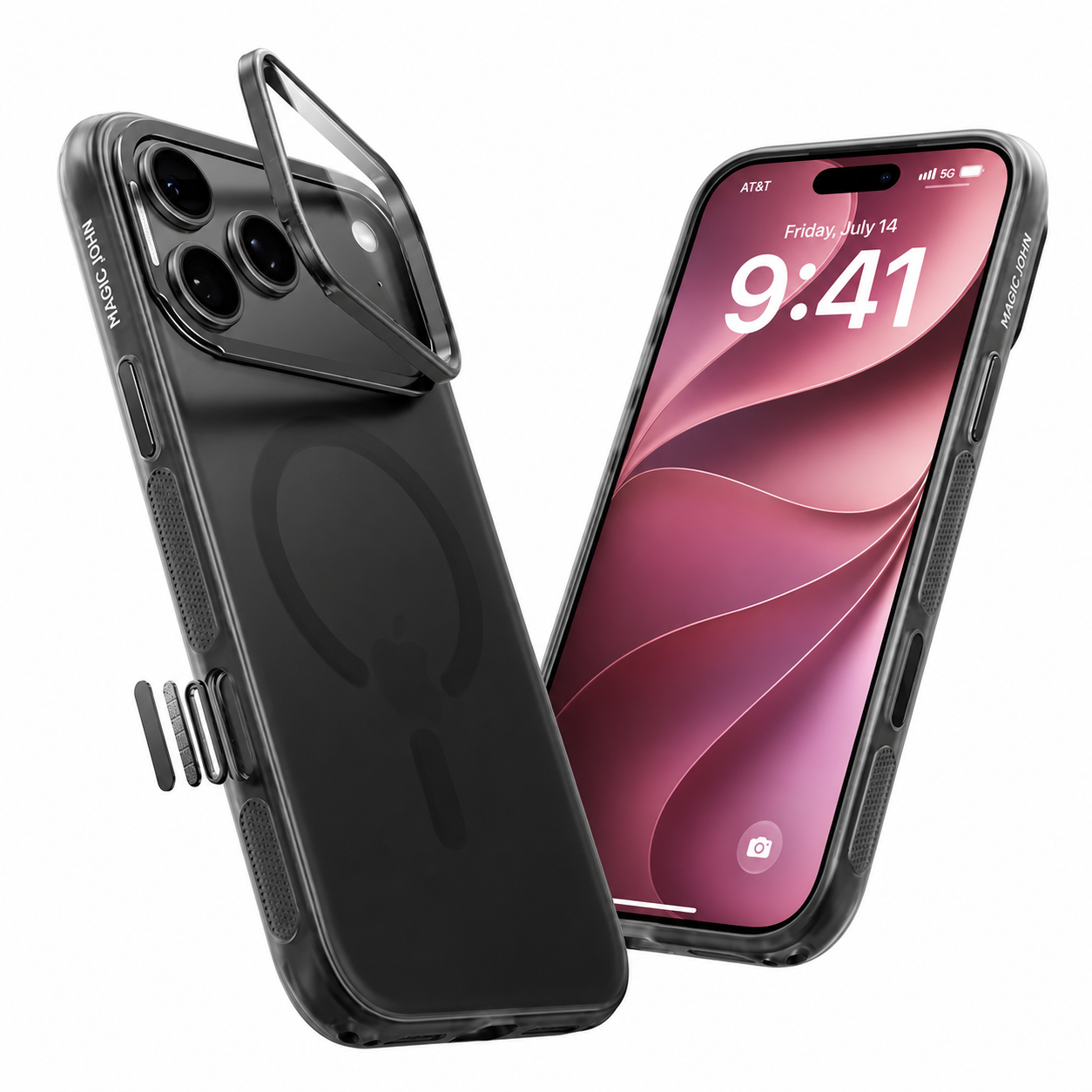
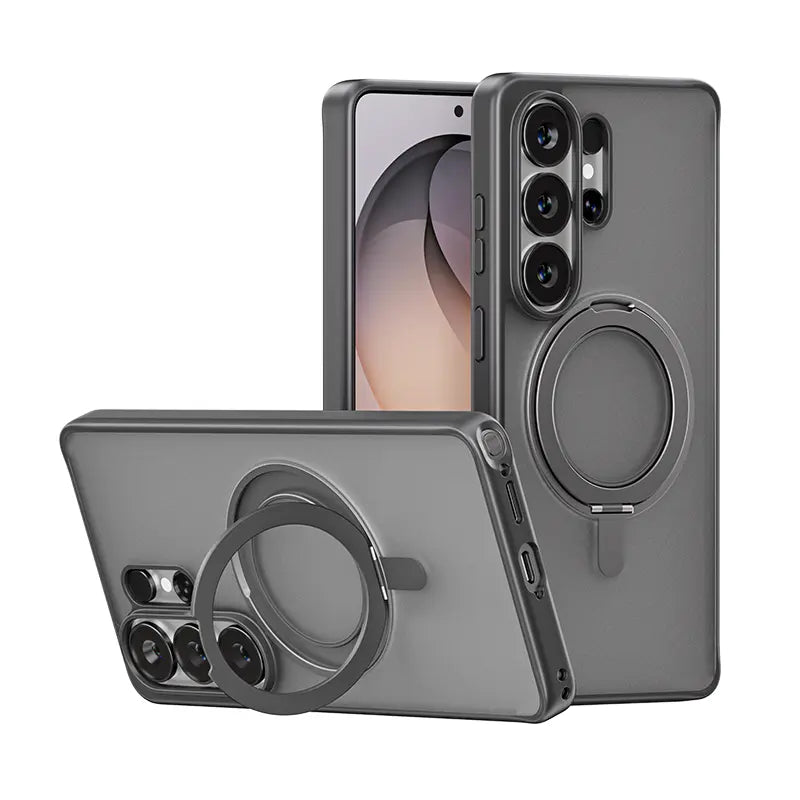

Galaxy S26 Ultraの電源が入りました。Smart Switchによって写真、アプリ、連絡先が移動されました。さあ、いよいよ本格的なセットアップです。Galaxy S26 Ultraの重要な設定オプションの中には、設定画面の奥深くに隠れていて、見落としやすいものもあります。ディスプレイを保護し、日常的なプライバシーを向上させ、便利なAIツールを有効化し、バッテリーの寿命を延ばすために、Galaxy S26 Ultraで最初に行うべきことをいくつかご紹介します。
何をするよりも先に画面を保護してください
新しいスマートフォンを使い始めて最初の数時間は、小さなミスが起こりやすい時期です。ケースやスクリーンプロテクターを取り付ける前に、机の上に置いたり、ポケットに入れたり、誰かに渡したりしてしまうのです。 Galaxy S26 Ultra 丈夫なガラスを使用していますが、丈夫なガラスでも砂、鍵、ほこり、ポケットの中のゴミなどで細かい傷がつくことがあります。S26 Ultra用のスクリーンプロテクターを購入する場合は、日常的な使用を始める前に装着してください。
サムスンはGalaxy S26シリーズのアクセサリーとしてスクリーンフィルムをリストアップしていますが、箱の中身にはスクリーンプロテクターがプリインストールされていないと記載されています。つまり、 画面保護 ケースや充電器を扱うのと同じように、ご自身のセットアップの一部として扱ってください。
Galaxy S26 Ultraのタッチ感度スクリーンプロテクターのセットアップ
最良の結果を得るには、この順番で使用してください。
- 行く 設定 > 画面.
- オンにする タッチ感度.
- S26 Ultra用のスクリーンプロテクターを貼ってください。
- 開ける 設定 > セキュリティとプライバシー > 生体認証.
- 古い指紋を削除してください。
- ガラスを取り付けた後、各指紋を再度登録してください。
この順序が重要なのは、 超音波指紋リーダー 指紋認証は、毎日使用する最終的な表面を通して行う必要があります。むき出しのガラス面に指紋を登録した後で強化ガラス製の保護フィルムを貼ると、ロック解除の精度が低下する可能性があります。 タッチ感度 保護フィルムを貼った状態でもタップやスワイプ操作がスムーズになり、指紋を再登録することでセンサーが新しい保護フィルムを通してより鮮明なスキャンが可能になります。
適切な保護フィルムの種類を選択してください
ディスプレイを元のパネルにできるだけ近づけたい場合は、透明な強化ガラス製プロテクターが最も安全な選択肢です。公共の場所で銀行アプリ、仕事のメッセージ、または個人的なチャットを頻繁に読む場合は、プライバシー保護バージョンが役立ちます。Galaxy S26 Ultraでは、 プライバシーディスプレイ内蔵 すでに多くの覗き見防止のニーズを満たしているので、 S26 Ultra用プライバシー保護フィルム それは意図的な選択であるべきであり、自動的な選択であってはならない。
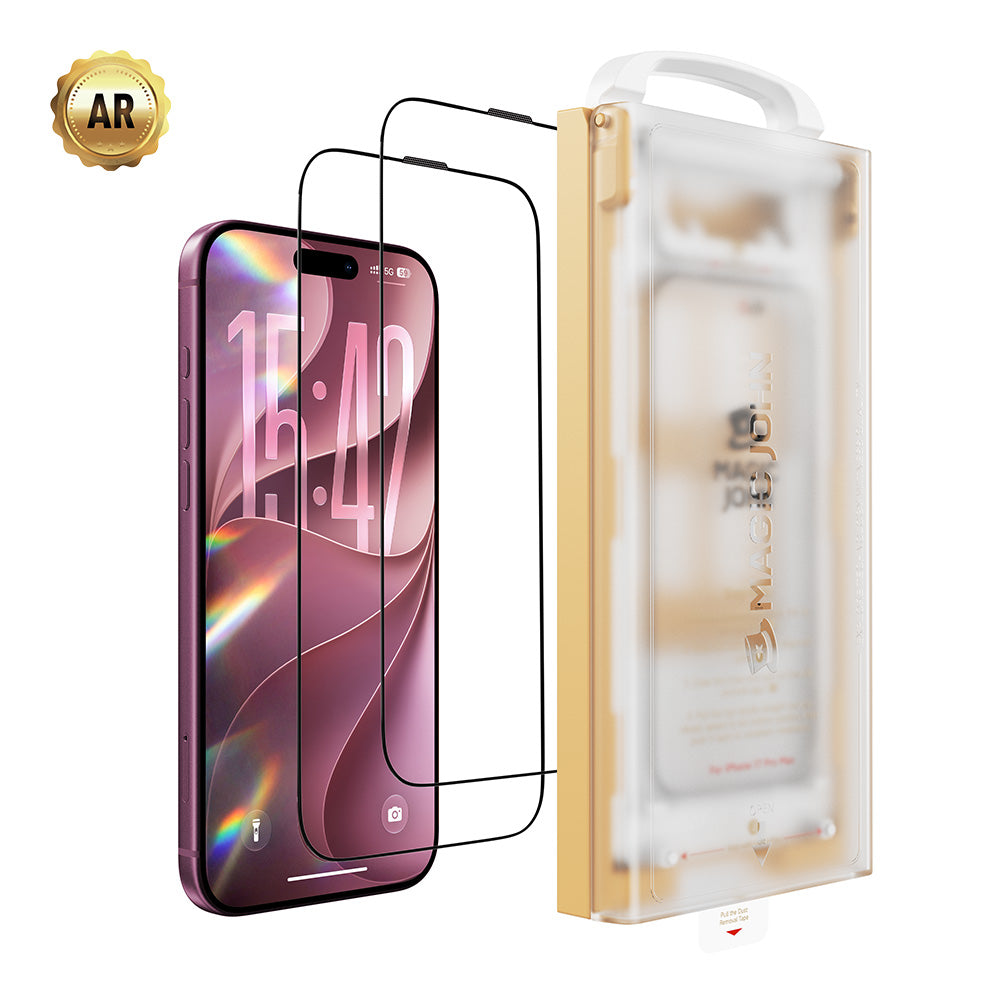
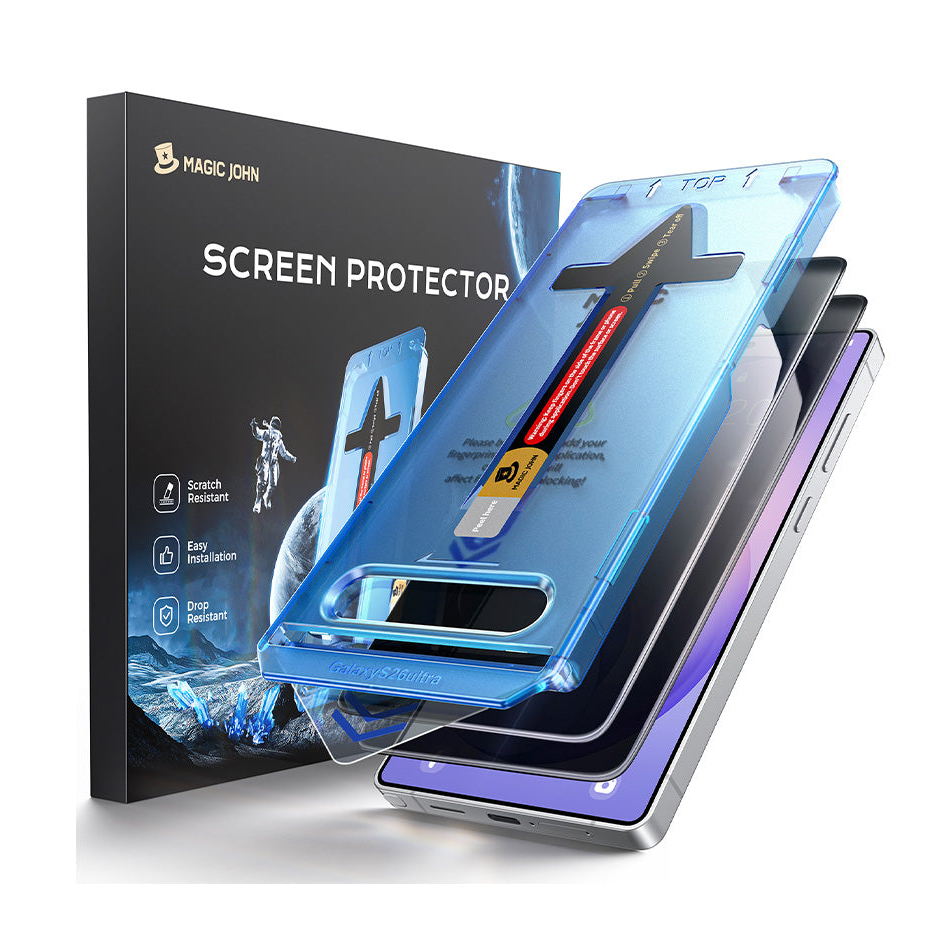
正確なフィット感を得るには、 MAGIC JOHN 第3世代 Samsung用スクリーンプロテクター, 次に選択する サムスンS26ウルトラ 商品ページに掲載されているモデルです。 HD透明 そして プライバシー保護 28度 覗き見防止 スタイルにより、日常的なクリアさと側面からのプライバシー保護のどちらかを選択できます。第3世代ダストフリーアプリケーターは 設置時のほこりや気泡を減らす. 保護フィルムを貼ったら、タッチ感度を有効にしたまま、指紋を再登録してください。
[[関連商品_1]]
ディスプレイをQHD+に設定し、カラーモードを調整します。
画面を保護した後、ディスプレイを調整します。Galaxy S26 Ultraには プレミアムな6.9インチQHD+ダイナミックAMOLED 2Xパネル, そのため、解像度を早めに確認しておくことは理にかなっています。多くのユーザーはこのメニューを一度も開かず、結果として何ヶ月も低い解像度で使い続けてしまうのです。
S26 ウルトラQHD+解像度
移動先:
設定 > 画面 > 画面解像度 > QHD+ > 適用する
の s26 ウルトラ QHD+ 解像度 この設定により、写真、ビデオ、地図、ウェブページにおいて、より鮮明なテキスト、よりクリアなアイコン、より詳細な表示が可能になります。特に、読書量が多い方、写真編集をする方、高解像度動画を視聴する方、画面分割機能を使う方に便利です。
QHD+はFHD+に比べてバッテリー消費量が若干多くなります。しかし、S26 Ultraは大型で鮮明なディスプレイを搭載しているため、多くのユーザーにとって画質の向上は価値があります。一日中外出したり、充電器から長時間離れる場合は、FHD+が実用的なバックアップオプションとなります。
鮮やかか、自然か?
次に、以下へ進んでください。
設定 > 画面 > スクリーンモード
ご覧になる 鮮やか そして 自然.
| 設定 | 最適な用途 | 期待できること |
| 鮮やか | ソーシャルメディア、ビデオ、ゲーム、明るい屋外での使用 | より鮮やかな色彩と明るい印象 |
| 自然 | 読書、写真レビュー、仕事用アプリ、色の快適さ | より柔らかな色合いと落ち着いた画面 |
多くのユーザーは、Galaxy S26 Ultraをすぐに印象的に見せる「ビビッド」モードを好みます。肌の色、文書、写真の彩度を抑えたい場合は、「ナチュラル」モードがおすすめです。それぞれのモードを丸一日試してみてください。設定画面だけで判断しないでください。
プライバシー表示を正しく設定する方法
プライバシーはGalaxy S26 Ultraの際立った機能の一つですが、意図を持って設定することで最大限の効果を発揮します。Samsungのプライバシーディスプレイは側面からの視認性を制限でき、アプリ、パスワード入力、通知ポップアップなどに合わせてカスタマイズ可能です。 s26 ウルトラ プライバシー ディスプレイ設定 画面全体が暗くなったり、鮮明さが損なわれたりすることなく、大切な瞬間を守ります。
機密性の高いアプリにはプライバシー表示を使用する
移動先:
設定 > 画面 > プライバシー表示
次に、実際の使用状況に合った条件を選択してください。追加すると最も便利なアプリは以下のとおりです。
- 銀行および決済アプリ
- メッセージとメール
- 写真とギャラリー
- パスワードマネージャー
- 仕事用チャットアプリ
- 健康アプリ
- 予約の詳細が記載された旅行アプリ
この方式では、リスクが高い場合でもこの機能は有効のまま維持されます。YouTube、地図、ショッピング、通常のブラウジング、ゲームなどでは、通常通りの表示が可能です。
通知ポップアップを保護する
通知のプライバシーは重要です。なぜなら、アラートはあなたが準備していないときに表示されるからです。テキストプレビュー、ワンタイムコード、支払いアラート、仕事のメッセージなどは、列に並んでいるとき、電車に乗っているとき、あるいは誰かの隣に座っているときなどに表示される可能性があります。
プライバシー設定で、ディスプレイの保護を有効にします。 通知ポップアップ. これは、Galaxy S26 Ultraで最初に行うべき最も実用的なことの1つです。なぜなら、ほとんどのアプリの外観を変えることなく、プライベートなコンテンツを保護できるからです。
内蔵されたプライバシー保護と物理的保護は、異なる問題を解決する。
プライバシーディスプレイは、横から見える範囲を減らすのに役立ちます。 傷、落下、ポケットの中の砂塵、角からの衝撃から保護します。. S26 Ultra用スクリーンプロテクターはガラス面を保護します。プライバシーディスプレイは視覚的なプライバシーを保護します。これらは2つの独立した設定レイヤーとして扱ってください。
内蔵のプライバシーディスプレイを主に使う場合は、HDクリアプロテクターの方が通常はより清潔な組み合わせになります。ソフトウェアのプライバシー設定がオフになっている場合でも物理的なプライバシー保護が必要な場合は、プライバシー保護装置を検討してください。 着色されたプライバシーガラスは、明るさや視界の快適さに影響を与える可能性があります。.
実際に使うGalaxy AI機能をオンにしよう
Galaxy S26 UltraにはAIツールがたくさんありますが、最も優れたツールは、日常のルーティンで時間を節約できるツールです。初日にすべてのメニューを1時間かけてテストする必要はありません。 Galaxy S26 UltraのGalaxy AI設定 そして、よくある問題を解決する機能を優先的に有効化する。
移動先:
設定 > 高度な機能 > ギャラクシーAI
一部のソフトウェアビルドでは、Galaxy AI が直接表示される場合もあります。 設定. メニュー名は、地域、通信事業者、およびOne UIのバージョンによって若干異なる場合があります。
通話スクリーニング
S26ウルトラコールスクリーニング これは、早めに設定しておくと非常に便利なAI機能の一つです。通話アシスタントが電話に応答し、発信者と通話目的を尋ね、会話内容を画面に表示します。通話はいつでもユーザーが引き継ぐことができます。
有効化するには:
- 開く 電話 アプリ。
- タップする その他のオプション アイコン。
- 行く 設定.
- タップ 通話スクリーニング.
- 言語を選択してください。
- オンにする 通話スクリーニング.
知らない番号からの電話、配達の電話、仕事の電話、迷惑電話などを受けた場合、この機能は時間を節約し、中断を減らすのに役立ちます。
ノートアシスト
ノートアシスト 仕事、学校、会議、計画、個人的なリマインダーなど、様々な場面で役立ちます。メモの整理、構成の追加、長文メモの要約、文章の校正、コンテンツの翻訳などが可能です。Samsung Notesをご利用の場合は、早めに有効化しておくと、後でメモを見直す際に便利です。
適切な使用例としては、以下のようなものがあります。
- 会議議事録
- インタビューメモ
- 授業ノート
- ショッピングプラン
- プロジェクトのアイデア
- 旅行計画
一番良い習慣はシンプルです。まずは雑多なメモを書き、その後ノートアシストを使って整理しましょう。
さあ、ちょっと押してみて。
さあ、ちょっと押してみて。 画面に表示されている内容を読み取り、カレンダーへのイベント追加、写真の共有、場所の開き方、保存済みの個人情報の入力など、便利な操作を提案します。アプリ間の細かい操作手順を減らすことができるため、非常に便利です。
有効化するには:
設定 > ギャラクシーAI > さあ、ちょっと押してみて。 > の上
プライバシーを重視する方は、機密情報を保存する前に個人データに関する設定を確認してください。サムスンは、一部の個人データ処理は端末上で行われる場合があり、機能によっては追加の同意を求められる場合があると述べています。
オフライン言語パックをダウンロード
翻訳ツールを使用する予定がある場合は、Wi-Fi接続中に言語パックをダウンロードしてください。オフラインでの言語サポートは、旅行中、電波状況の悪い場所、混雑したイベントなどで役立ちます。言語や地域によってサポート状況が異なる場合があるため、Galaxy AIの設定画面で言語リストを確認してください。
バッテリーの長期的な健全性を最適化する
購入初日のバッテリー持続時間は、あくまでも全体像の一部に過ぎません。長期的なバッテリーの状態は、充電習慣、発熱、画面設定、バックグラウンドでの使用状況などによって左右されます。 Galaxy S26 Ultraのバッテリー保護設定 スマートフォンの使いやすさを損なうことなく、バッテリーへの負担を軽減するのに役立ちます。
最大充電限度額を設定する
移動先:
設定 > バッテリー > バッテリー保護
ご自身の生活スタイルに合った利用限度額をお選びください。多くのユーザーは、毎日の充電レベルを80%、85%、または90%に設定しています。低い充電レベルはバッテリーへの負担を軽減し、高い充電レベルはバッテリー駆動時間を延ばします。1日の終わりにバッテリー残量が十分にあることが多い場合は、80%または85%を試してみてください。1日が長く、バッテリー残量が予測できない場合は、90%の方が快適に感じるかもしれません。
必要な時に100%充電しましょう。長距離ドライブ、飛行機での移動、長時間労働、イベント開催日などは、フル充電する正当な理由となります。バッテリー保護機能は、あなたの日常をサポートするものであり、不安を煽るものであってはなりません。
夜間充電にはアダプティブ充電を使用してください
夜間に充電する場合は、サムスンの適応型バッテリー保護オプションを使用してください。 適応型充電 睡眠パターンを学習し、夜間の一部は低充電レベルで充電を行い、起床時間近くに充電を完了させることができます。これにより、高充電レベルで放置される時間を短縮できます。
充電中は、スマートフォンを硬い場所に置いてください。枕の下、高温になる車内、厚手の毛布の上などでの充電は避けてください。熱はスマートフォンのバッテリーを劣化させる最も速い要因の一つです。
パフォーマンスプロファイルをライトに切り替える
移動先:
設定 > デバイスのお手入れ > パフォーマンスプロファイル > ライト
ライトモード 処理速度よりもバッテリー寿命を優先するため、ゲームのパフォーマンスには影響しません。メッセージング、ブラウジング、メール、地図、銀行取引、写真、ストリーミングなどの通常の使用では、多くのユーザーは大きな速度低下に気づかないでしょう。最高のパフォーマンスが必要な場合は、標準モードに戻すことができます。
また、以下のバッテリー設定もご確認ください。
- 保つ 明るさの調整 それがあなたの目に合うかどうか。
- 使用 適応型モーションスムースネス 流動性と効率性のバランスを保つため。
- あまり使わないアプリはスリープ状態にする。
- Smart Switchで復元したものの、もう使用していないアプリを削除してください。
- セットアップや同期作業によって初日のバッテリー消費量が通常よりも多く見えることがあるため、3日間経過してからバッテリー使用状況を確認してください。
S26 Ultraを10分で準備完了!
最高の Galaxy S26 Ultraのセットアップ手順 手順は簡単です。画面を保護し、ディスプレイを調整し、プライバシー設定を行い、便利なAI機能を有効にし、バッテリー保護を調整します。これらのGalaxy S26 Ultraの初期設定はほんの数分で完了し、新規ユーザーが最も後悔する事態を防ぐことができます。
設定が完了したら、画面保護をGalaxy S26 Ultraの設定の最後のステップにしてください。 マジック・ジョン Galaxy S26シリーズ 利用可能な保護フィルムのオプションを比較し、日常的な使用状況、ディスプレイの好み、プライバシーのニーズに合ったものをお選びください。
よくある質問
Q1. Galaxy S26 Ultraには、画面保護フィルムが最初から貼られていますか?
いいえ。Samsungが公表しているGalaxy S26シリーズの同梱品は、本体、USB Type-C充電ケーブル、SIM取り出しツールです。画面保護フィルムは付属品として記載されています。Galaxy S26 Ultraは丈夫なディスプレイガラスを使用していますが、日常的にポケットに入れたままにしておくと、砂、埃、鍵などで細かい傷がつく可能性があります。通常使用前に強化ガラス製の保護フィルムを貼っておくのが、最初の対策として有効です。
Q2. スクリーンプロテクターはS26 Ultraのプライバシーディスプレイ機能に影響を与えますか?
薄型の高精細クリア強化ガラス製保護フィルムは、Galaxy S26 Ultraに内蔵されているプライバシーディスプレイ機能を妨げることはありません。プライバシー効果はディスプレイシステム自体によって実現されているためです。ただし、非常に濃い色や厚みのある着色プライバシーフィルムは、明るさ、鮮明度、または見やすさに影響を与える可能性があります。Samsungの内蔵プライバシー機能を頻繁に使用する予定がある場合は、S26 Ultra用の高精細クリアスクリーンプロテクターを使用するのが通常はより安全な選択肢です。
Q3. スクリーンプロテクターを貼った後、指紋を再登録する必要がありますか?
はい。まずタッチ感度をオンにし、保護フィルムを貼ってから、指紋を削除して再登録してください。これにより、超音波指紋センサーがガラスを通して新たにスキャンされます。それでもロック解除の精度が不安定な場合は、画面を清掃し、 センサー付近に気泡や埃がないか確認してください。, そして、同じ指をわずかに異なる角度から2回記録する。
Q4. Galaxy AIの機能の中で、すぐにオンにする価値のあるものはどれですか?
通話スクリーニング、メモアシスト、Now Nudgeは、日々の業務で最も役立つ機能です。通話スクリーニングは、知らない番号からの電話を管理するのに役立ちます。メモアシストは、整理されていないメモや要約を整理します。Now Nudgeは、画面に表示されている内容に基づいてアクションを提案します。 設定 > 高度な機能 > ギャラクシーAI または 設定 > ギャラクシーAI お住まいの地域で利用可能な機能を確認するには、こちらをクリックしてください。


コメントを残す
このサイトはhCaptchaによって保護されており、hCaptchaプライバシーポリシーおよび利用規約が適用されます。