



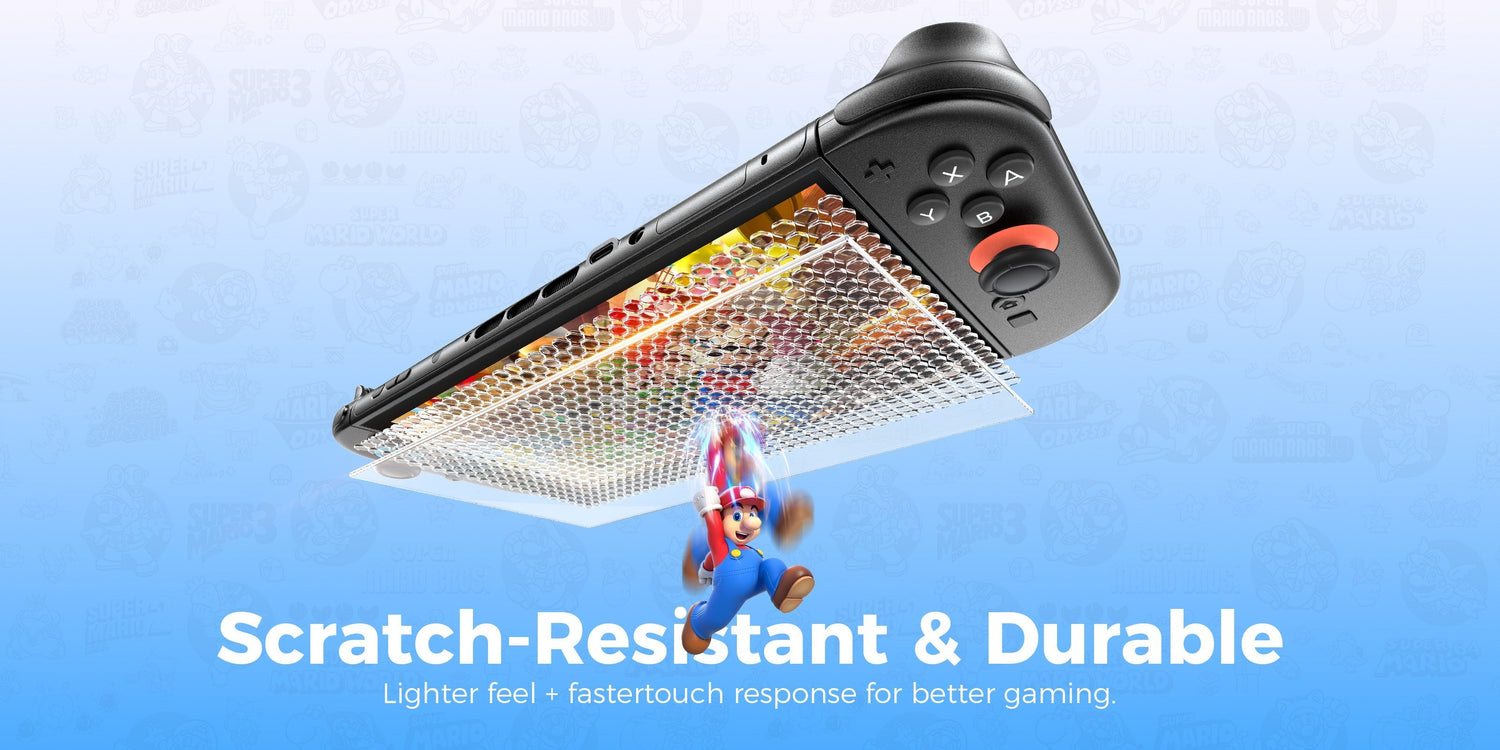
The Switch 2's 7.9-inch screen is the largest display Nintendo has ever put on a handheld. It looks stunning in handheld mode, but that extra surface area picks up scratches fast. Fingerprints, pocket debris, and daily docking can leave marks you'll notice every time the screen goes dark. A good Nintendo Switch 2 screen protector keeps your display clean and scratch-free from day one.
Why Your Switch 2 Needs Screen Protection Immediately
Nintendo made some big changes with the Switch 2. The screen grew from 6.2 inches on the original to 7.9 inches, and the resolution jumped from 720p to full 1080p. The bezels are slimmer, the display fills more of the front face, and HDR10 support makes colors pop.
All of that adds up to a lot more exposed glass to protect.
Bigger Screen, Bigger Risk
A larger display gives you a better gaming experience, but it also gives scratches, dust, and smudges a bigger target. The thinner bezels leave less buffer between the edge of the glass and whatever your Switch bumps into.
Everyday Threats Add Up
You don't need a dramatic drop to damage the screen. Here's what causes the most common marks:
- Sliding the console in and out of a bag alongside keys, cables, or chargers.
- Fingerprints and oils from normal touchscreen use that attract dust and grit.
- Setting the Switch face-down on a table, countertop, or couch cushion.
- Docking and undocking the console multiple times a day.
Each of these seems minor on its own. Over weeks and months, they create a network of fine scratches that dull the display. A screen protector absorbs that wear, so the actual screen underneath stays factory-fresh.
What Causes Screen Scratches on Switch 2?
Most scratches come from things you'd never suspect.
Pocket and Bag Damage
Tossing your Switch 2 into a backpack or messenger bag is the fastest way to pick up scratches. Zippers, coins, pens, and gritty fabric drag across the glass in transit. Without a case, fine surface scratches show up within weeks.
Dust and Micro-Debris
Tiny particles of sand, lint, or household dust can settle on the screen. When you wipe the display with a cloth or your sleeve, that debris acts like sandpaper on a micro scale.
Dock Friction
The Switch 2 dock uses a slot design similar to the original. Some users have reported light scratches appearing after repeated docking, especially if the console isn't inserted straight. The risk is minor with careful handling, but a screen protector removes the worry entirely.
Tabletop Contact
Using the kickstand on rough surfaces, or placing the console screen-down briefly, can introduce scratches you won't notice until you're playing in a dark scene.
What Kind of Screen Protector Is Best for Switch 2?
Two main options exist: tempered glass and PET plastic film. For a 1080p HDR display like the Switch 2's, the difference matters.
| Feature | 9H Tempered Glass | PET Plastic Film |
| Clarity | 99%+ transparency; preserves HDR colors and brightness | Slightly hazy; can reduce sharpness on high-res screens |
| Scratch Resistance | 9H hardness rating; resists keys, coins, and daily abrasion | Scratches easily; needs frequent replacement |
| Touch Feel | Smooth, glass-like surface that feels identical to the bare screen | Rubbery or sticky texture; less responsive swipe feel |
| Thickness | 0.25mm to 0.33mm; slim enough for dock compatibility | Thinner, but offers far less impact protection |
| Durability | Lasts 1 to 2 years under normal use | Wears down in a few months |
For a console with the Switch 2's display quality, 9H tempered glass is the clear choice. The "9H" refers to the pencil hardness scale, where 9H is the highest grade of pencil lead; glass rated at 9H resists scratches from anything softer than that. PET film works as a temporary fix, but it dulls the clarity that makes the 1080p panel worth having. Tempered glass preserves the original look and feel while adding real protection.
How to Apply a Screen Protector Without Dust or Bubbles
The Switch 2's larger 7.9-inch screen makes manual application tricky. A slightly crooked placement or a single dust particle under the glass creates a bubble you can't push out. Re-lifting and re-applying usually makes things worse.
Why Manual Application Fails on Large Screens
With a phone-sized screen, you can line up a protector by eye and get close enough. On a 7.9-inch surface, small alignment errors multiply. A 1mm tilt at one end becomes a visible gap at the other, and airborne dust lands on the adhesive the longer the glass hovers.
A Simpler Approach
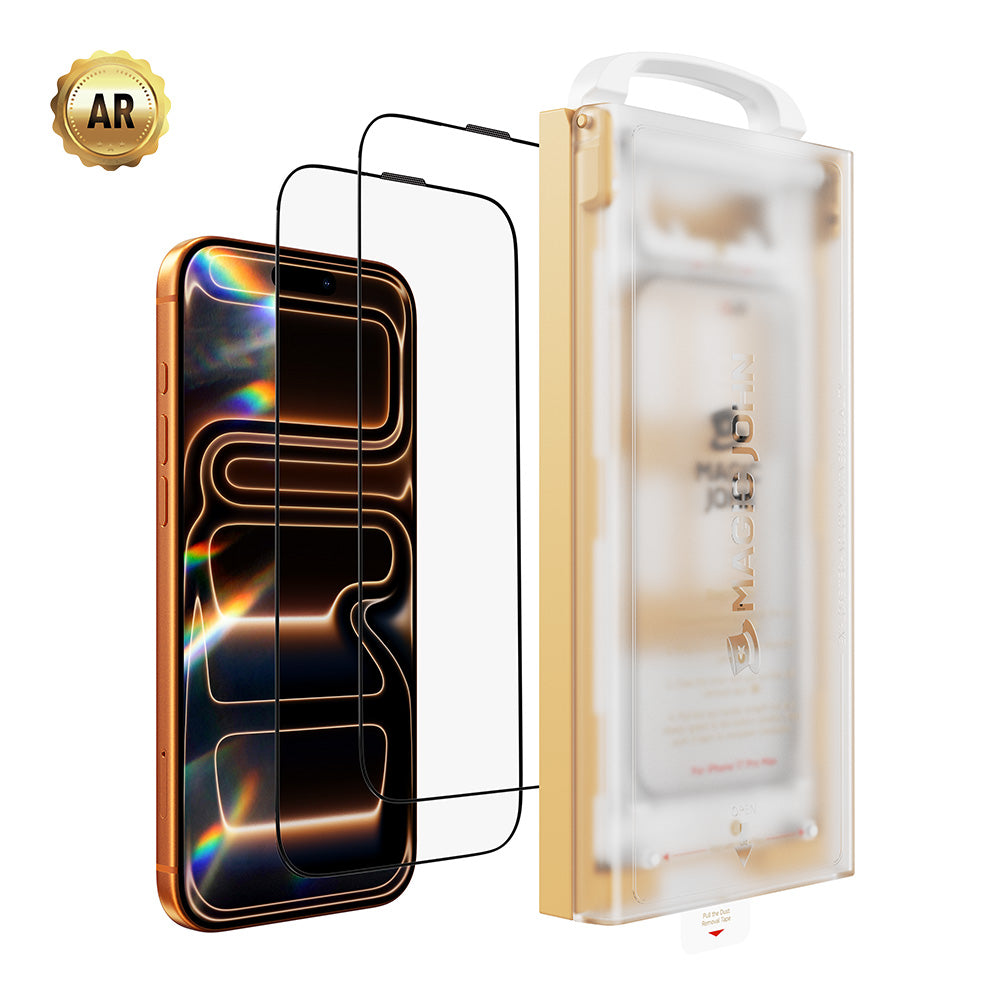
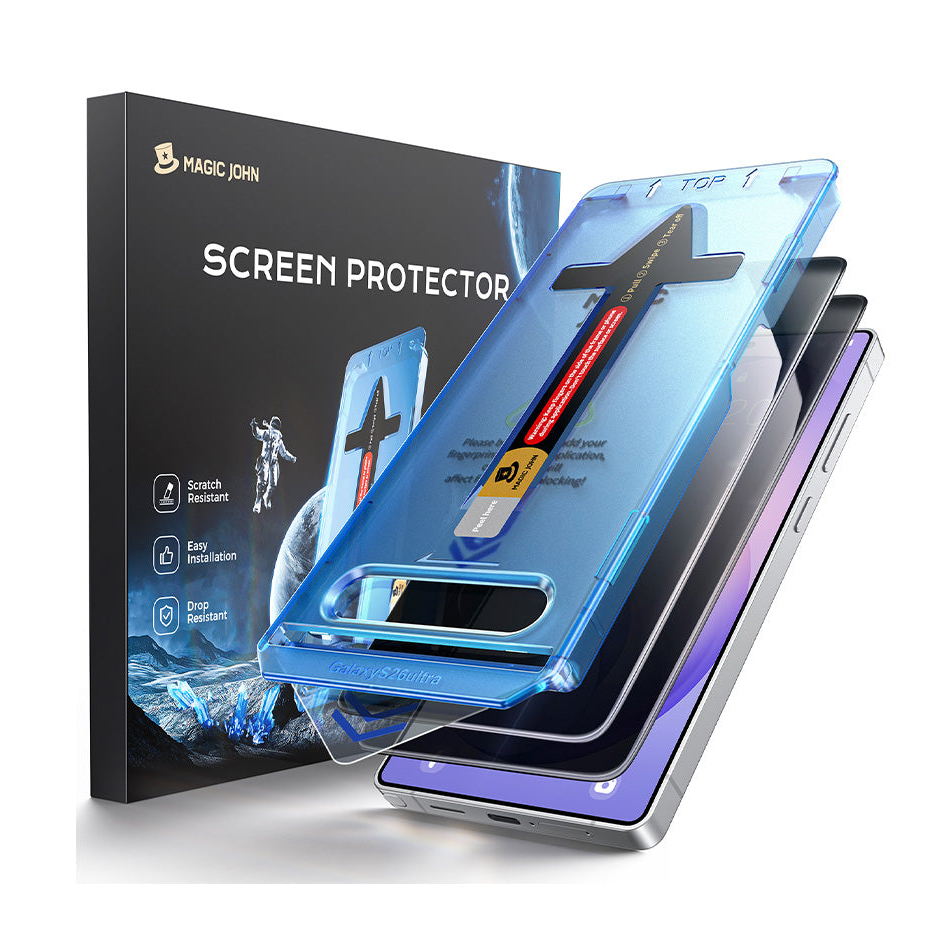
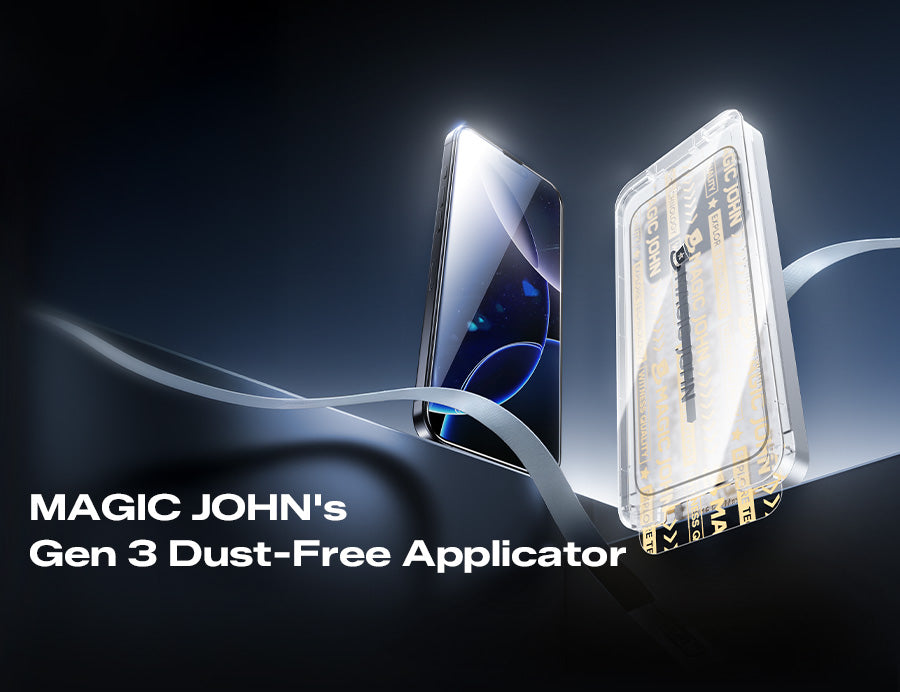
Some screen protector kits now include auto-alignment tools that handle positioning and dust removal in one step. MAGIC JOHN's Switch 2 screen protector kit, for example, uses a snap-on guide frame and built-in dust elimination. You place the frame, pull a tab, and the tempered glass drops into perfect alignment in seconds. No eyeballing, no re-dos, and no trapped dust particles.

If you're applying any screen protector manually, these tips help:
- Work in a bathroom after running hot water for a few minutes. The steam settles airborne dust.
- Clean the screen with the included alcohol wipe first, then the microfiber cloth.
- Use dust-removal stickers to lift any remaining particles before peeling the adhesive backing.
- Lower the glass from one end to the other in a slow, steady motion.
Will a Screen Protector Affect Dock Compatibility?
No. A properly designed tempered glass protector for the Switch 2 adds only 0.25mm to 0.33mm of thickness. Nintendo's dock has enough clearance to accommodate that without friction or fit issues.
What to Check
- Look for protectors marked "dock-compatible" or "dock-friendly" on the packaging.
- Avoid protectors thicker than 0.4mm, which can create a tight fit.
- Make sure the edges are rounded and polished so they don't catch on the dock rails.
If the protector is designed specifically for the Switch 2, dock compatibility should not be a concern. The console slides in and out the same way it does with a bare screen.
Screen Protectors to Avoid for Your Switch 2
Not every Nintendo Switch 2 screen protector out there is a good fit. A few common problems to watch for:
- Oversized or generic protectors. A protector cut for a different device or with rough edges will peel, catch dust along the border, or block the dock slot.
- Excessively thick glass. Anything above 0.4mm can interfere with dock insertion and make the console feel bulky in handheld mode.
- No-name PET films without oleophobic coating. These attract fingerprints, feel gummy, and make the 1080p screen look washed out.
- Protectors without alignment tools. On a 7.9-inch screen, freehand placement is difficult. Crooked installation leads to exposed edges that collect dust and eventually peel.
Stick with a protector made specifically for the Switch 2, with 9H tempered glass and a proper installation kit.

Protect Your Switch 2 the Smart Way
The Switch 2's display is a big upgrade, and it deserves matching protection. A 9H tempered glass screen protector keeps the screen clear, scratch-free, and dock-compatible without changing how the console looks or feels. Choose one with the right fit, the right thickness, and an installation method that works on a large screen.
MAGIC JOHN's Nintendo Switch 2 screen protector is built for exactly this. You can find it at MAGIC JOHN.
FAQs about Switch 2 screen protectors
Q1: Can I use an old Switch screen protector on the Switch 2?
No. The original Switch has a 6.2-inch screen, and the Switch OLED is 7.0 inches. The Switch 2 is 7.9 inches with a different shape and bezel layout. An older protector won't cover the full screen. You need one designed specifically for the Switch 2.
Q2: Does a tempered glass layer make the device too thick for the dock?
No. A Switch 2 tempered glass protector adds about 0.25mm to 0.33mm. The dock is designed with enough clearance for that added thickness. As long as you use a protector made for the Switch 2, docking works the same as with a bare screen.
Q3: Will the adhesive leave a sticky residue if I remove it later?
Not with a quality tempered glass protector. The adhesive layer on well-made protectors uses silicone-based bonding that lifts off cleanly. If any minor residue remains, a quick wipe with an alcohol pad removes it without damaging the screen.
Q4: How do I clean the screen before applying the shield?
Start with the alcohol wipe included in your kit to remove oils and fingerprints. Follow up with the dry microfiber cloth. Then use a dust-removal sticker to lift any remaining particles. Do this in a low-dust room, and avoid touching the screen after cleaning. The cleaner the surface, the better the protector adheres.

コメントを書く
このサイトはhCaptchaによって保護されており、hCaptchaプライバシーポリシーおよび利用規約が適用されます。