
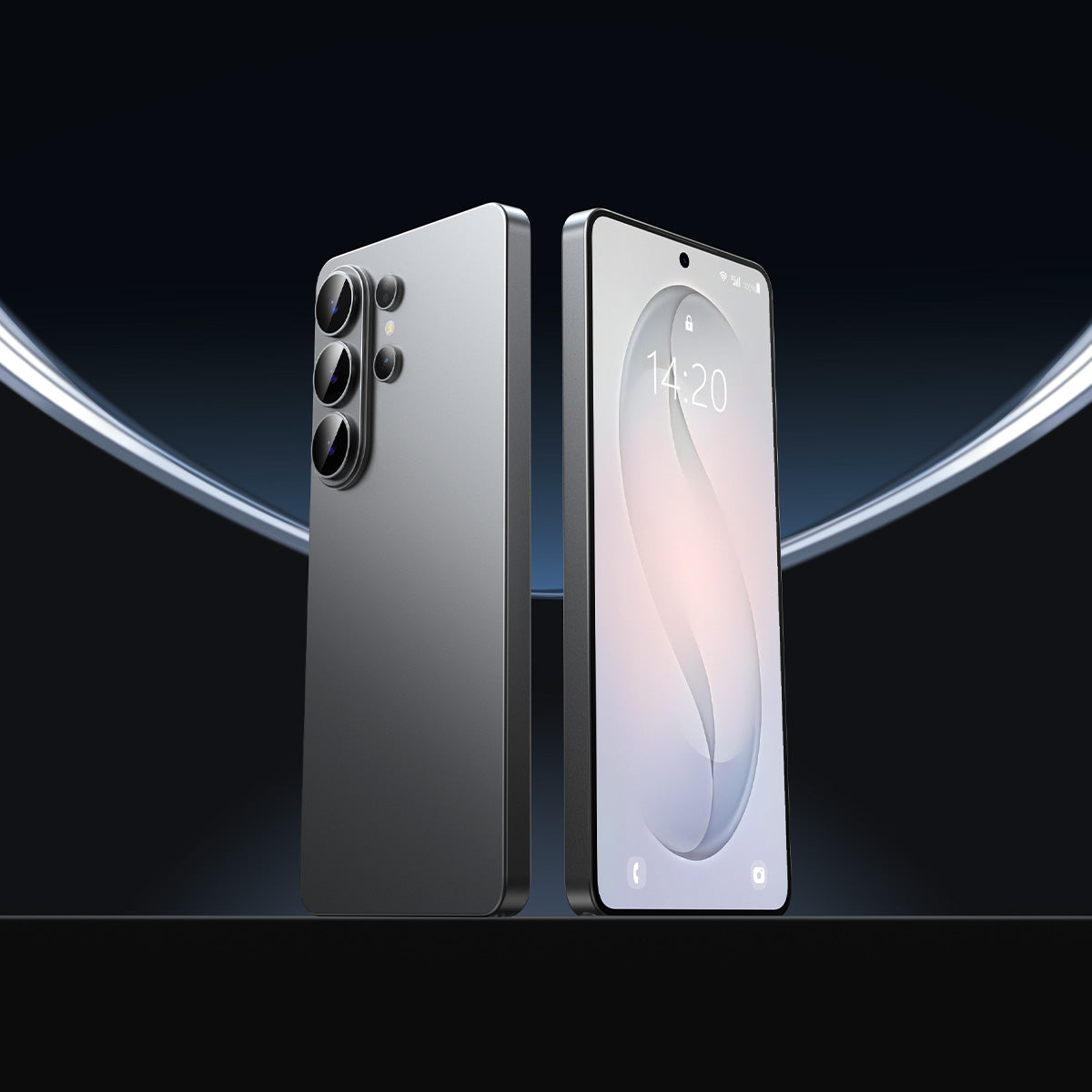




If you have a Galaxy S26 series phone, there's a camera option you may not have turned on: a 24MP photo mode that sits between the default 12MP and the 200MP mode. It isn't in the Camera app by default. You enable it with Samsung's Camera Assistant app. Here's what it does, who can use it, how to turn it on, and a few tips for sharper photos. As of October 18, 2026, the details below come from Samsung Members and tech coverage, and menu names can change with app updates.
What Is 24MP Mode?
On the Galaxy S26 Ultra, the wide camera shoots 12MP photos by default. There's also a 200MP mode for maximum detail. 24MP sits in between. According to SamMobile, it "uses more of the sensor than 12MP while still applying some pixel binning," and is aimed at situations where you want better quality than the default. The article doesn't say how the 24MP image is produced from the sensor, and neither do we.
The mode is off by default. You have to enable it, and that's done in Samsung's separate Camera Assistant app.
Which Phones Have It?
According to Android Headlines, the Galaxy S26, S26 Plus and S26 Ultra are the first Samsung models to offer 24MP in standard Photo mode through Camera Assistant. A March update moved the setting somewhere easier to find and added a "Keep 24MP resolution" option so the camera stays in that mode.
The Galaxy S25 series is different. SamMobile reports that the option is still missing from standard Photo mode on the S25 after the One UI 9 update, though S25 owners can shoot at 24MP in the separate Expert RAW app. A Samsung Members moderator notes that feature availability may vary by device model and region.
How to Turn It On
Per the Samsung Members guide for the Galaxy S26 Ultra:
- Open the Galaxy Store and download Camera Assistant. It's free, and Samsung moderators describe it as an official app that's part of the Good Lock suite.
- Open Camera Assistant and turn on the 24 MP resolution setting. SamMobile describes this as 24 MP in Photo mode.
- Open the Camera app. The 24MP option should now appear alongside the other resolution choices.
Menu names can differ slightly between app versions. If you don't see it, update Camera Assistant in the Galaxy Store first.
12MP vs 24MP vs 200MP
This comparison is based on SamMobile's description, not on our own testing:
| Mode | What it's like |
|---|---|
| 12MP (default) | Heavy binning, so images are clean and well processed, but there's less detail to crop into. Described as the better choice for everyday shooting. |
| 24MP | More detail than 12MP, with "manageable" file sizes. Keeps access to the different zoom lenses. |
| 200MP | Maximum detail, but much larger files and slower processing. Locked to the wide camera, so you lose the 3x and 5x telephoto options, and bright light can produce overexposed highlights that are harder to recover. |
In short, 24MP is a middle option for when you plan to crop or print. For everyday snapshots, the default 12MP is fine. SamMobile also notes the S26 Ultra's wider f/1.4 aperture helps in all modes.
Tips for Sharper Photos
More resolution only helps if the photo is sharp to begin with. A few simple habits make a difference at any setting:
- Wipe the lens. Fingerprints and pocket lint are the most common reason for soft, hazy shots. Use a clean microfiber cloth.
- Hold steady. Brace your elbows against your body, or rest the phone on a surface. Detail-focused modes show up camera shake more.
- Tap to focus, and wait a moment before you press the shutter.
- Mind the light. Even a great sensor needs light. Look for good, even lighting where you can.
-
Check your case. Make sure it doesn't cover the lenses or the flash.

Protecting Your Galaxy and Its Camera
If you're getting into higher-detail photography, the camera glass is worth protecting. Magic John makes accessories for Samsung Galaxy phones, including the Galaxy S26 series and earlier models:
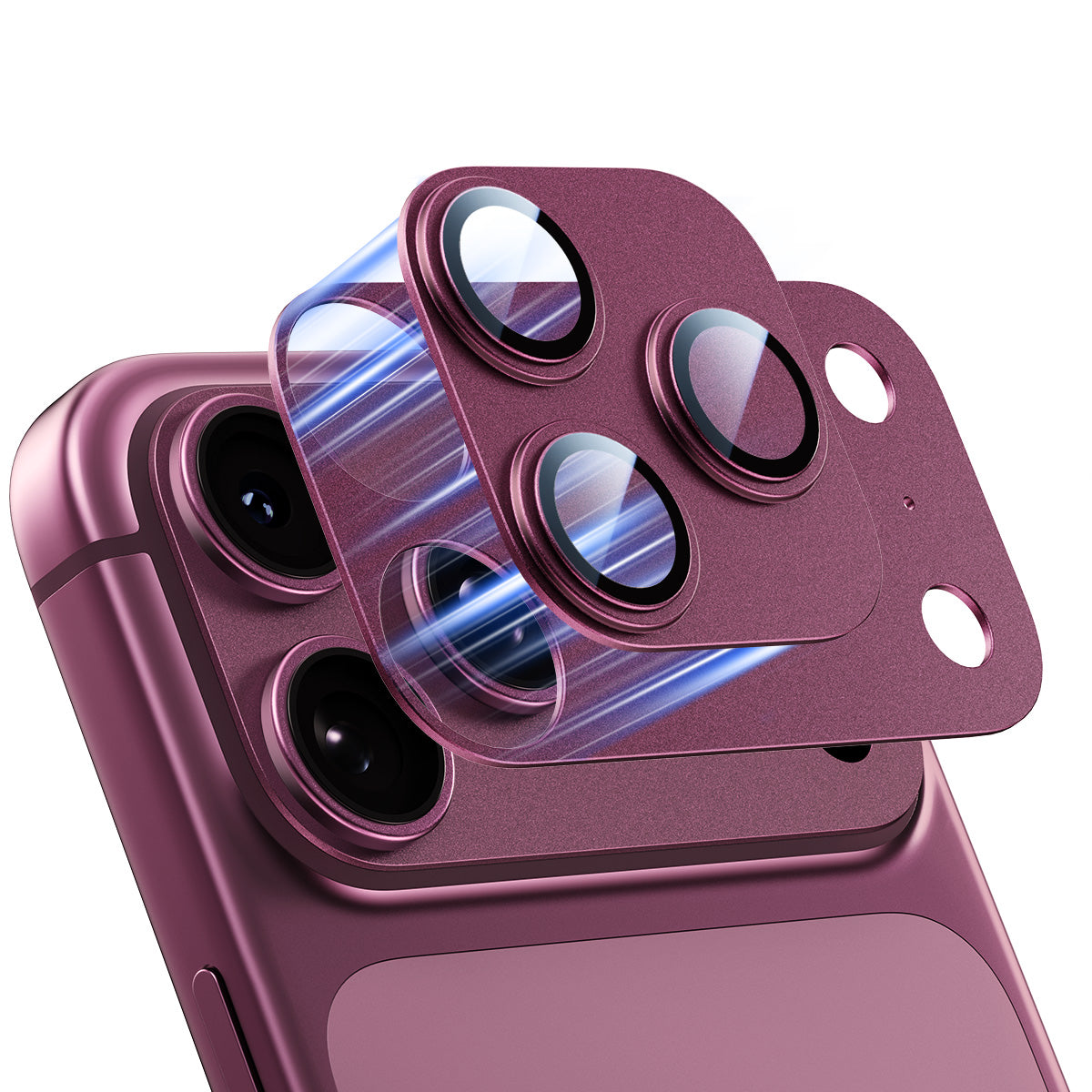
- Camera lens protector for the Galaxy S26 Ultra: helps protect the camera lens glass from scratches without affecting image quality. It's made for the S26 Ultra only, so it won't fit other models. Follow our installation tutorial so it sits correctly. If a photo ever looks hazy, wipe the lens and the protector first, since fingerprints are the most common cause.
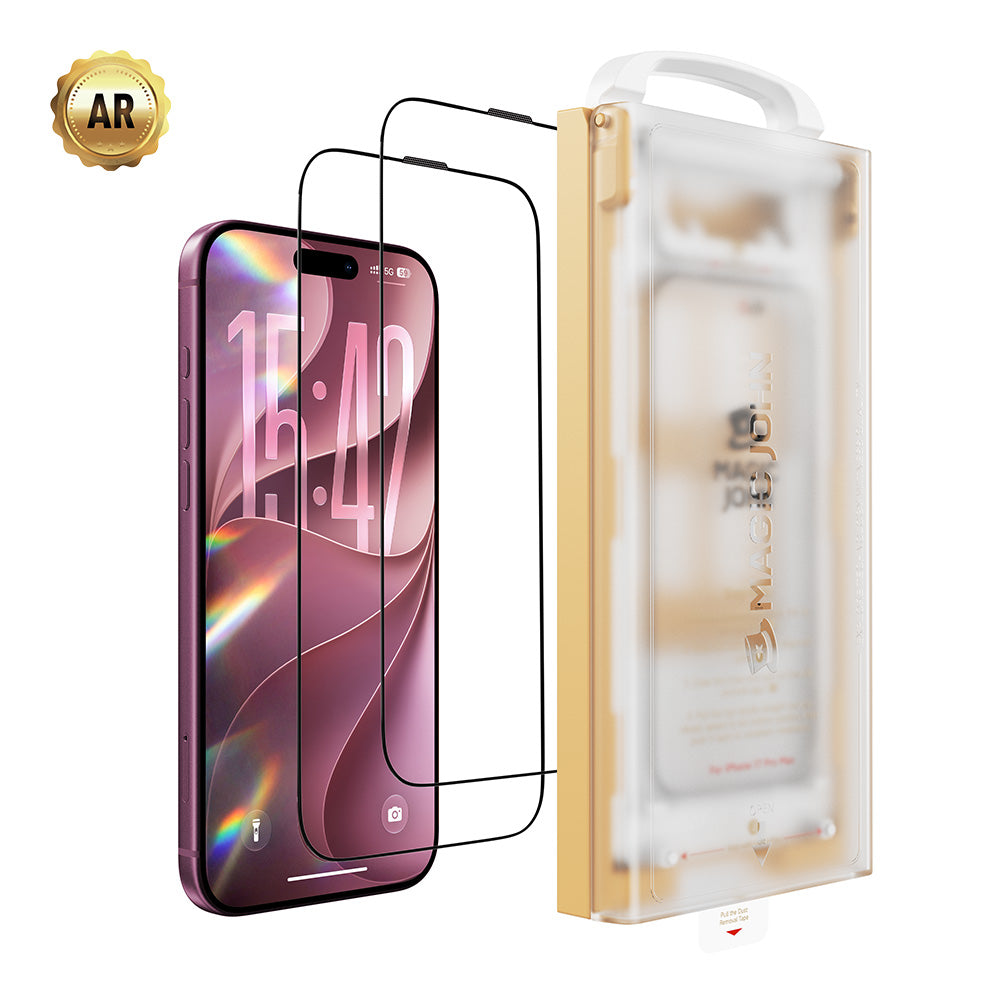
- Screen protectors: help keep everyday scratches off the display you use to review your photos.
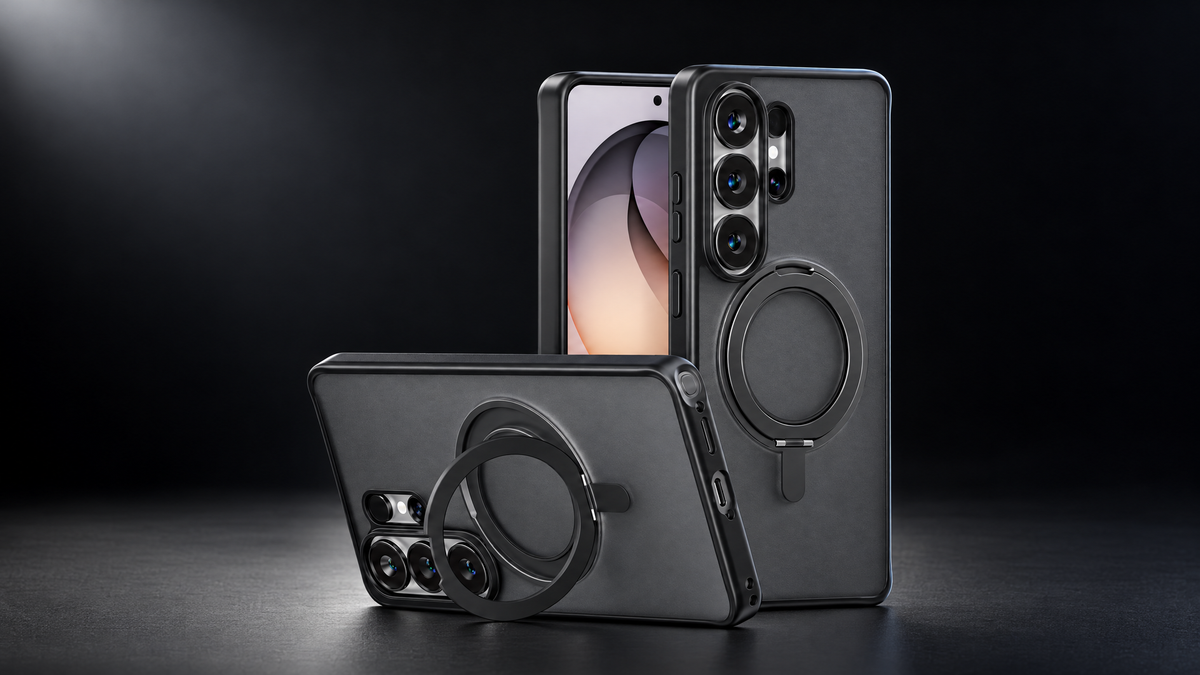
- Cases: add protection around the edges and corners and a better grip when you're shooting.
Accessories are model-specific, so pick the exact phone you own, and see our installation tutorial before you apply a protector. Our lens protector is currently made for the Galaxy S26 Ultra only. On the Galaxy S26 Ultra, also read our guide to Privacy Display vs privacy screen protectors.
Shop Samsung Galaxy accessories →
FAQ
What is Samsung's 24MP mode?
It's a photo resolution setting between 12MP and 200MP on the Galaxy S26 series, enabled through the Camera Assistant app.
How do I turn on 24MP on my Galaxy S26 Ultra?
Download Camera Assistant from the Galaxy Store, turn on the 24 MP resolution setting, then choose 24MP in the Camera app.
Does the Galaxy S25 have 24MP mode?
Not in standard Photo mode, according to SamMobile. S25 owners can shoot 24MP in the Expert RAW app.
Is 24MP better than 12MP?
It has more detail, which helps with cropping and prints. The default 12MP is described as the better choice for everyday shooting.
Is 24MP better than 200MP?
It depends. 200MP has the most detail but larger files and slower processing, and it's limited to the wide camera. 24MP keeps your zoom lenses.
Does a lens protector affect photo quality?
Ours doesn't affect image quality. It's made for the Galaxy S26 Ultra, so choose the matching model and install it by following our tutorial. If photos look hazy, wipe the lens and the protector first.


اترك تعليقا
This site is protected by hCaptcha and the hCaptcha Privacy Policy and Terms of Service apply.