

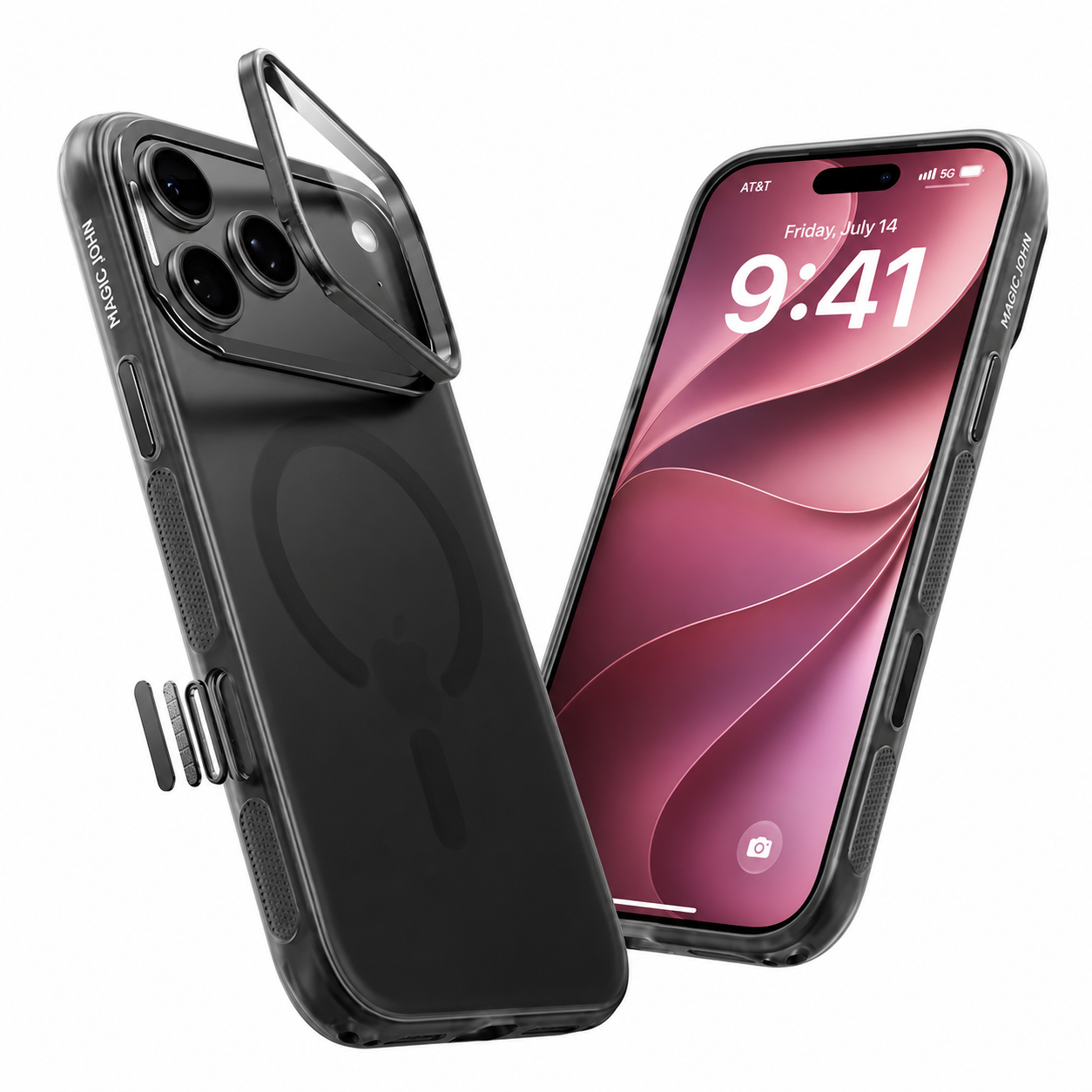
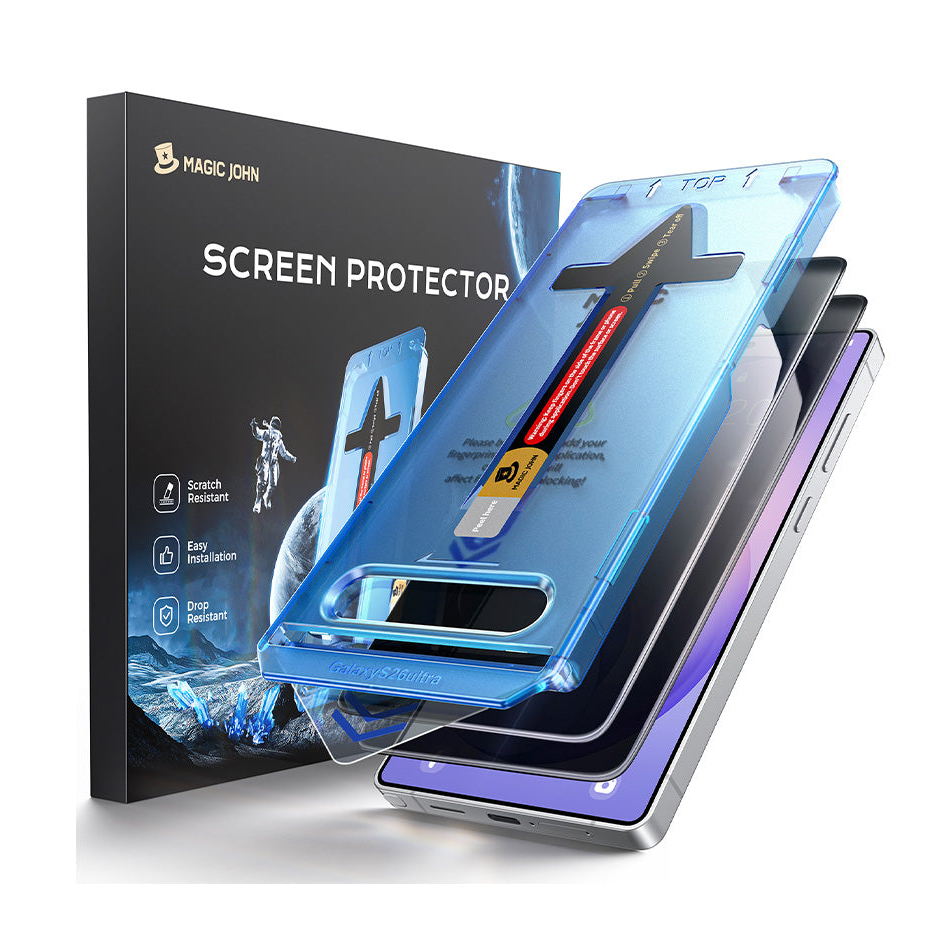



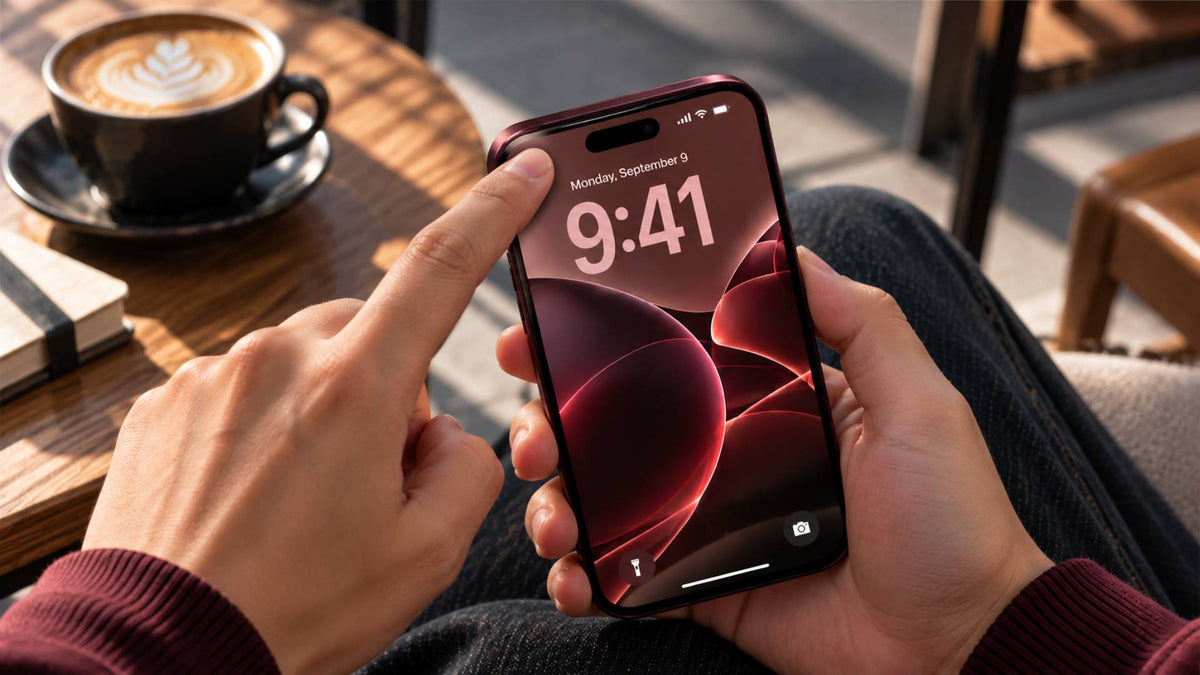
If Face ID is freezing, failing or restarting your new iPhone 18 Pro, you're not alone. The good news: Apple has released a software fix, and in some cases the cause is as simple as your screen protector. Here's how to get Face ID working again, in order.
What's Going Wrong With iPhone 18 Pro Face ID?
The iPhone 18 Pro and Pro Max launched on September 18 with iOS 27, and early owners have reported a few issues:
- Freeze and reboot after a failed Face ID scan. This mostly happens when unlocking Face ID-protected apps such as Passwords or private Safari tabs, not from the normal lock screen.
- Unresponsive touchscreen when Notification Center and Control Center are opened at the same time.
- A color artifact in photos at 2x zoom with the aperture at f/1.48 in certain lighting.
The iPhone 18 Pro moved its Face ID infrared camera beneath the display, in the top-left corner, to shrink the Dynamic Island. That's a big hardware change, and it's behind some of the confusion.
Step 1: Update to iOS 27.0.1

Apple released iOS 27.0.1 on September 29, and its notes cover the freeze-and-reboot bug, the touchscreen issue and the camera artifact. To install it:
- Back up your iPhone and connect to Wi-Fi.
- Go to Settings > General > Software Update.
- Tap Update Now and wait for the phone to restart.
Test Face ID again afterwards. If it works, you're done.

Step 2: Check Your Screen Protector
Still having trouble? Apple's own Face ID troubleshooting page tells iPhone 18 Pro owners to remove anything covering the TrueDepth camera, including a case or screen protector. It specifically suggests removing privacy screen protectors if Face ID won't work.
That doesn't mean every protector is a problem. Results depend on the protector's design over the top-left sensor area, and on how accurately it's installed. Quick checks:
- Clean the top of the display and the edge of the protector.
- Make sure the protector is aligned with no bubbles or dust near the camera area.
- Remove the protector temporarily and test Face ID. If it works without it, the protector is the cause.
Other Face ID tips from Apple: make sure your finger isn't covering the top-left corner, remove heavy makeup, and restart your iPhone. If problems continue, you can reset Face ID in Settings.

How to Choose a Screen Protector for iPhone 18 Pro
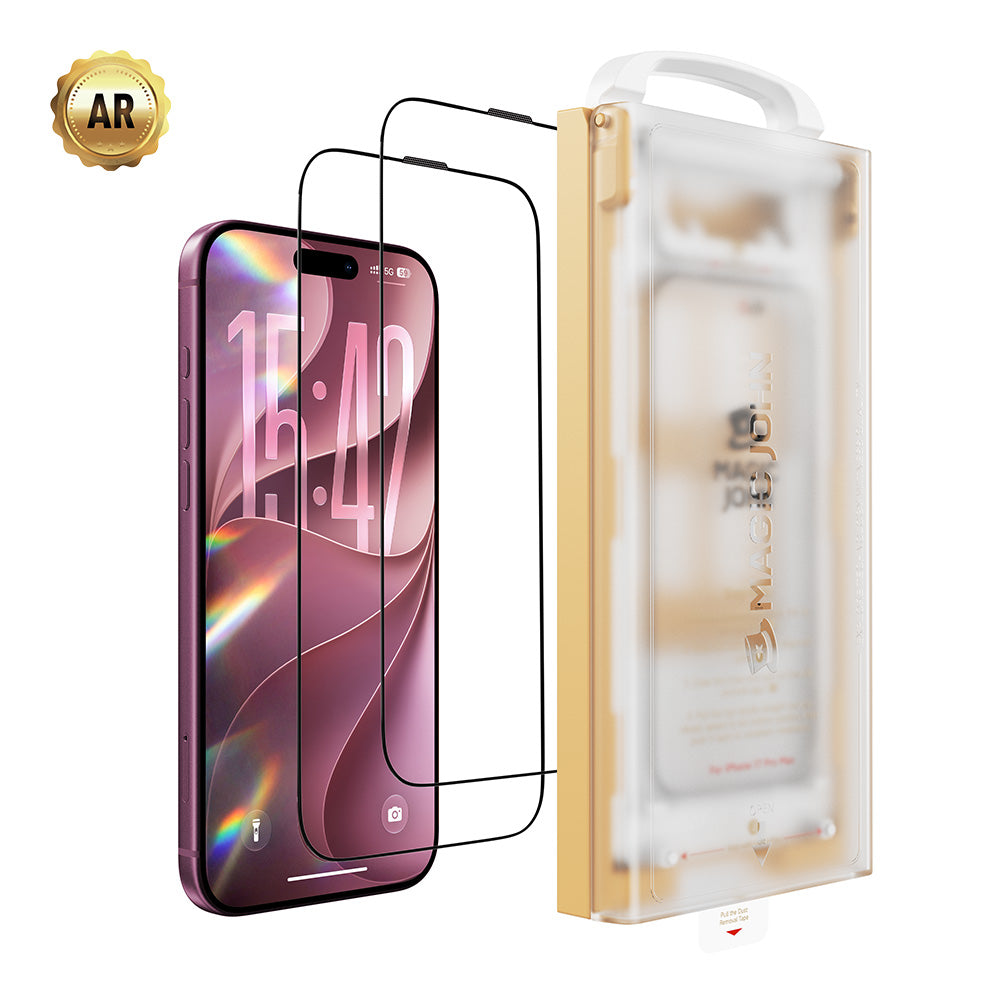
Look for a protector made specifically for the iPhone 18 Pro or Pro Max, not one designed for older models. The camera cutout is smaller and the Face ID camera has moved, so an old fit can cause problems. Here's how our two options compare:
|
MAGIC JOHN HD Clear (AR)
|
MAGIC JOHN Privacy (AR)
|
|
|---|---|---|
| Best for | Maximum clarity and touch response | Keeping your screen private in public |
| Look | Crystal-clear, true-to-display colors | Dark from side angles |
| Face ID note | Doesn't affect Face ID | Doesn't affect Face ID |
| Protection | Tempered glass, scratch and drop resistant | Tempered glass, scratch and drop resistant |
| Anti Reflection | MAGIC JOHN AR Tech | MAGIC JOHN AR Tech |
| Shop HD Clear | Shop Privacy |


Shop all iPhone 18 Pro screen protectors →

FAQ
Do screen protectors affect iPhone 18 Pro Face ID?
Usually not. A screen protector made for your exact iPhone 18 Pro model won't interfere with Face ID. Problems typically come from a protector that doesn't match your model, or from the causes Apple lists, such as a smudge, dust or a bubble covering the TrueDepth camera, or a finger blocking the top-left corner.
Do privacy screen protectors work with iPhone 18 Pro Face ID?
Yes. Our privacy screen protector won't affect Face ID on the iPhone 18 Pro.
Does iOS 27.0.1 fix the Face ID freezing bug?
Yes. Apple's release notes for iOS 27.0.1 include a fix for the freeze-and-reboot issue after a failed Face ID attempt.
Can I reuse an iPhone 17 Pro screen protector?
Not recommended. The iPhone 18 Pro has a smaller cutout and a relocated Face ID camera, so use a protector designed for it.
How do I install a tempered glass protector without bubbles?
For the best result, follow our step-by-step installation tutorial.


اترك تعليقا
This site is protected by hCaptcha and the hCaptcha Privacy Policy and Terms of Service apply.